Gemini Omni Flash: free AI video, and how to prompt it
Published
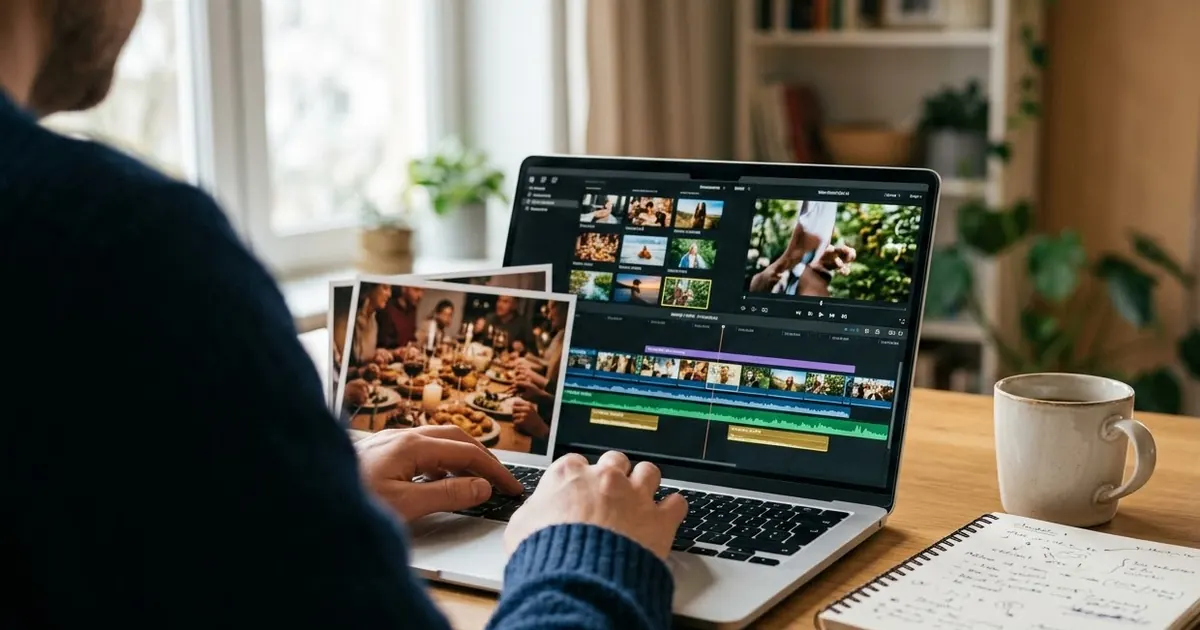
Short answerGemini Omni Flash is Google's video model inside the Gemini app, the API and now Google Vids, where anyone with a Google account can use it for free. Describe the scene, the motion and what must stay the same in one prompt, then keep chatting to refine the result rather than starting over.
On 23 September 2026, Google said anyone with a Google or Google Workspace account can now make videos free of charge in Google Vids, using its Gemini Omni Flash model. Until then, video generation like this mostly lived behind a paid plan or a developer key. Free access in a tool most people already have is what makes this worth learning now.
This guide covers what Gemini Omni Flash actually does and how to prompt it, whether you're using it in Google Vids, the Gemini app, or through the API.
What Gemini Omni Flash is
Gemini Omni Flash is Google's video model, reachable through the Gemini app, the API (as gemini-omni-1.1-flash) and, since the September announcement, Google Vids at no cost. It takes text, images, audio and video together in a single prompt and returns one finished video. Google's own material for it describes three things that matter for how you prompt it:
- It's conversational. You don't have to rewrite the whole prompt to change one thing. You ask for a first version, then say what to change.
- It keeps a subject consistent. Give it a reference image of a person, a pet or a product, and it tries to keep that same subject through the clip.
- It extends and connects clips. Beyond making a new video from scratch, it can lengthen an existing one, or generate a video that transitions between two images.
Google Vids currently offers 1080p output as part of the free tier. Read Google's announcement for the exact terms for your account type, since free-tier limits can change.
Writing your first prompt
A good Omni Flash prompt has four parts: the scene, the motion, what stays fixed, and the length. Skipping the third part is the most common mistake, and it's the one that causes faces to drift or props to change colour halfway through.
Scene: [WHAT'S IN THE SHOT, e.g. a woman at a café table by a window].
Motion: [WHAT MOVES, e.g. she lifts her cup, steam rises, light rain outside].
Keep fixed: her face, hair, outfit and the table setting exactly as in the reference photo.
Camera: [STATIC / SLOW PUSH-IN / PAN].
Length: [4-8] seconds.
Keep the whole thing to a few sentences. A focused prompt gives the model less to guess at than a long paragraph of adjectives.
Editing by chatting, not rewriting
The part that's genuinely different from a one-shot video tool is that you can look at the result and ask for a change in plain words: "make the light warmer", "slow down her movement", "remove the cup". This works better when you change one thing per message and repeat what must not move, the same rule as any AI photo edit.
If a follow-up edit drifts (the face changes slightly, or the background shifts), go back one step and try the same instruction worded more specifically, rather than stacking a third edit on top of a broken one.
Two clips from one photo: interpolation
One of the more useful new tricks is asking for a video that transitions between two images, rather than animating just one. It's good for before-and-after moments, or for turning two old photos into a short clip. The then-and-now transition prompt is written for exactly this:
Create a smooth transition from the first photo to the second photo, keeping the same pose and framing. The scene updates gradually and naturally between the two. Locked camera, elegant morph, [4-6] seconds.
Upload the two images in the order you want them to appear, and say which is first.
Extending a clip
If a generated or uploaded clip ends too soon, ask Omni Flash to extend it rather than regenerating the whole thing:
Continue this video for another [3-5] seconds. Keep the same subject, camera position and lighting. The action continues naturally: [WHAT HAPPENS NEXT].
Extending works best when you describe what should happen next rather than just "continue", since the model otherwise has to guess where the scene was heading.
Bringing a single photo to life
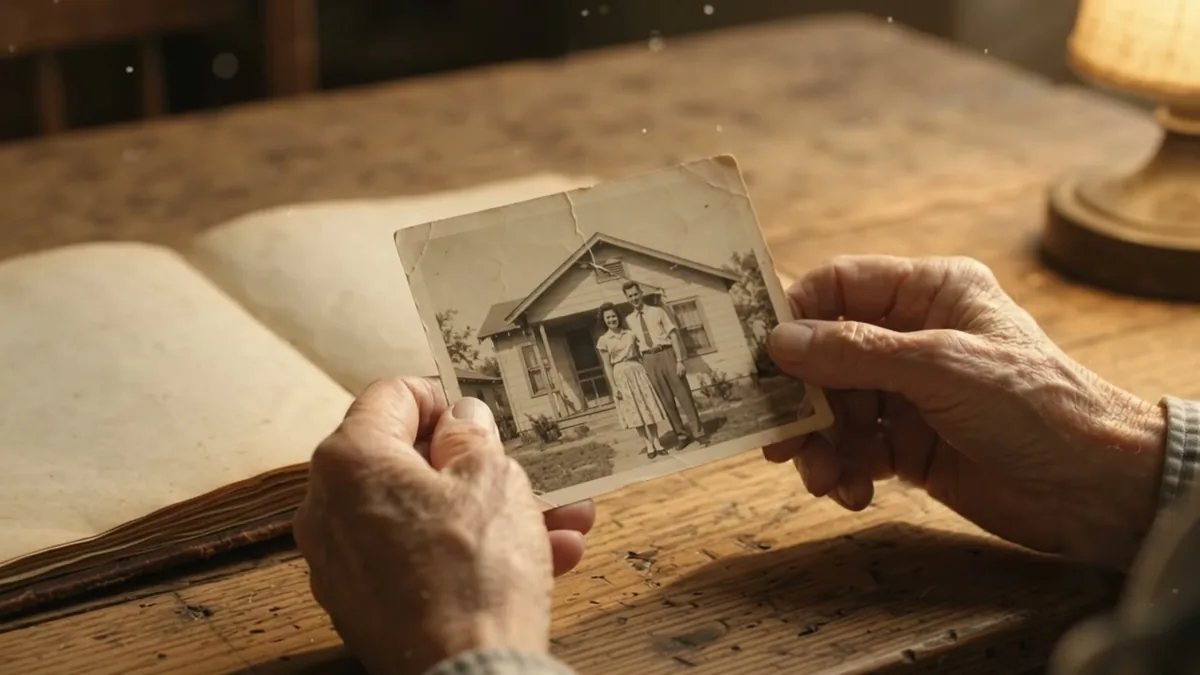
For a still photo with no follow-on clip, animate it directly. The bring an old photo to life prompt keeps the motion small and respectful, which suits family photos:
Animate this old photo with subtle, realistic motion. Keep every face and identity exactly the same.
Motion: the people gently blink, breathe, and give a soft natural smile.
Camera slowly pushes in. Keep the original photo's colours and era. No talking, no big movements. 5 seconds.
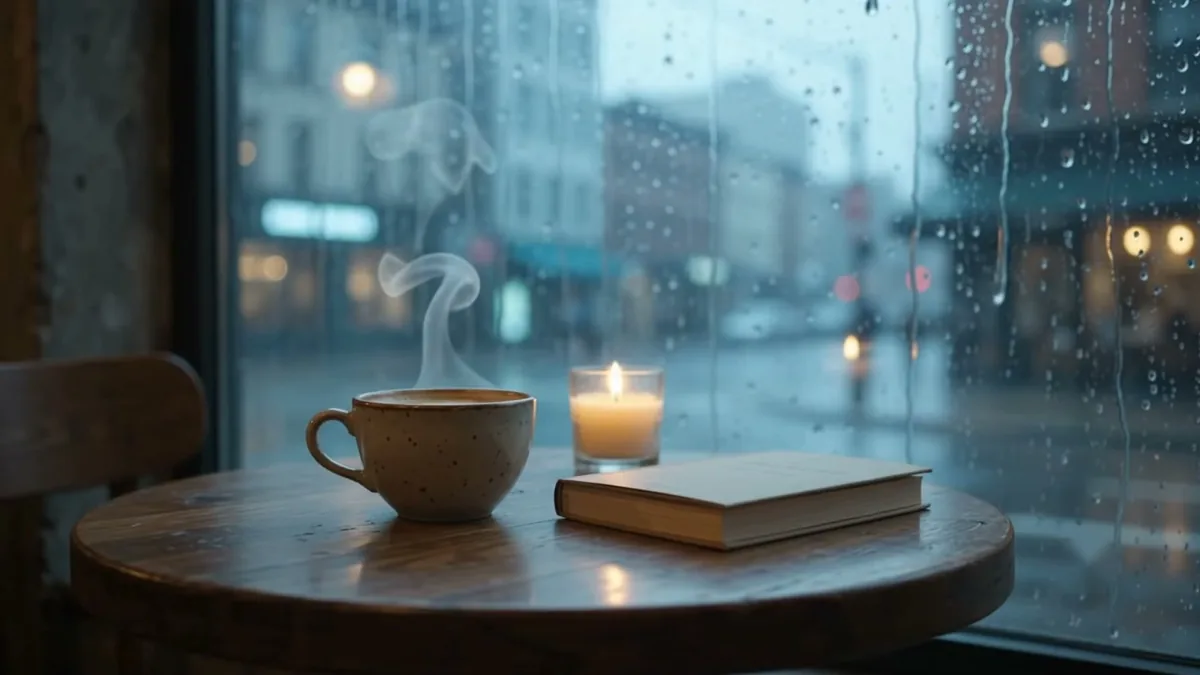
For a warmer, more cinematic version of the same idea, the cinematic memory pan prompt adds a slow pan and drifting light. And if you only want one small thing moving, such as steam from a cup or a candle flame, the cinemagraph prompt keeps everything else locked still.
Common problems
The face changes slightly partway through the clip. Add a reference image of the subject and repeat "same face, same identity" in your prompt, not just at the start.
The subject moves too much, and it looks unnatural. Ask for smaller motion words: "a gentle blink" rather than "smiles and turns to the camera".
An edit undoes something you liked. Say what to keep, not just what to change: "make the light warmer, keep everything else exactly the same".
The clip feels rushed. Shorter lengths (4-6 seconds) tend to hold together better than long ones on a single generation. Extend afterwards if you need more.
Where to go from here
If you want the fuller picture on turning any photo into motion, our guide to animating a photo with AI covers image-to-video prompts across several tools. You'll find more ready-made prompts in the PromptUp video prompts and Gemini prompts collections, and the prompt builder can put one together for you.
Quick checklist
- Say the scene, the motion, what stays fixed, and the length.
- Keep prompts short: a few sentences beats a long paragraph.
- Edit by chatting, one change at a time, and repeat what must stay the same.
- Use two images for a transition, not just one for animation.
- Describe what happens next when extending a clip, not just "continue".
- Check your account's free-tier limits, since they can change.
Comments
No comments yet. Be the first to share what worked for you.