AI wedding video prompts: turn your wedding photos into video
Published
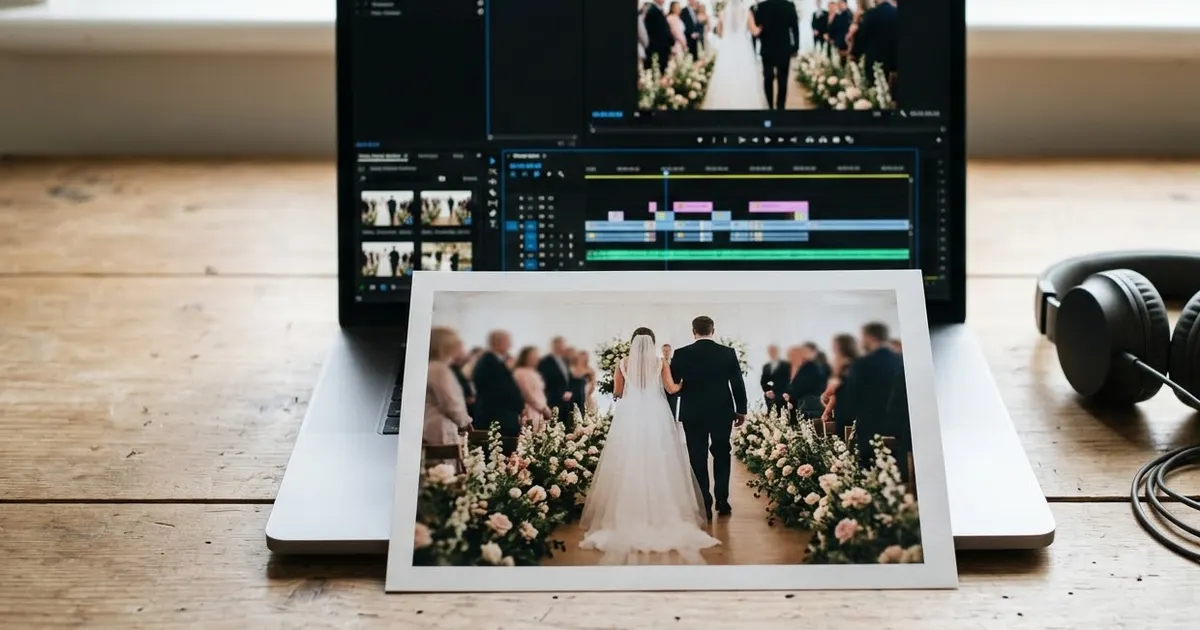
Short answerPick one clear, well-lit wedding photo per clip rather than mixing several, and describe one camera move, such as a slow push-in or a gentle pan, instead of several at once. Keep faces unchanged and let the stillness of the photo do the emotional work.
A wedding album is full of photos that already feel cinematic: the first look, the walk down the aisle, the ring exchange. AI video tools can take one of those still photos and turn it into a short, moving clip, which works well for a WhatsApp status, a Reel, or a short anniversary video, without reshooting anything.
If you're new to writing AI video prompts, start with AI video prompts for beginners. This guide focuses on wedding photos specifically.
Pick the right photo first
A still photo with the right qualities turns into a much better clip.
- Choose a sharp, well-lit photo. Motion and detail both get harder to add convincingly if the source photo is blurry or dark.
- One moment, one photo. A clip works best from a single clear subject or couple, not a wide group shot with lots of separate things happening.
- Decide what should move. A veil in the wind, hair, a hand lifting a glass, or just the camera itself drifting past the couple, pick one.
The core slow-motion prompt
For a classic cinematic effect, the wedding photo in cinematic slow motion prompt adds gentle, realistic movement to a still photo:
Bring this wedding photo to life as a slow-motion video. Add natural movement: a light breeze through the veil and hair, a soft blink, a small shift in weight. Camera holds steady with a very slow, subtle push-in. Keep both faces and the outfits exactly as in the photo.

Warm, soft lighting matching the original. 6 seconds.
The instruction to keep both faces exactly as in the photo matters most here. Without it, some tools subtly change an expression while adding motion, which looks wrong the moment anyone who knows the couple sees it.
A highlight-reel teaser from several photos
If you have a handful of photos from the day, the wedding highlight teaser prompt builds a short sequence rather than animating just one image:
Create a short highlight video from these wedding photos, in this order: [LIST YOUR PHOTO ORDER]. Use a slow dissolve between each, with a gentle push-in on the subject in each one. Keep every face in every photo exactly as it appears in the source. 15 seconds, warm cinematic colour grade, no text overlays.
List the order you want, rather than leaving it to the tool to decide, since the sequence is usually the difference between a teaser that tells a small story and one that just cycles through photos at random.
A single, more dramatic clip
For one standout photo, such as the first look or the exit under flower petals, the wedding photo to slow-motion clip prompt leans further into a cinematic camera move:
Turn this wedding photo into a slow-motion cinematic clip. Slow dolly-in on the couple, shallow depth of field, petals or confetti drifting gently in the air if present in the photo. Keep faces, outfits and the background exactly as shown. 5 seconds, film-like colour grade.
Only ask for drifting petals or confetti if they're genuinely in the photo. Adding elements that weren't there can look obviously artificial once the background starts moving.
Older or restored wedding photos
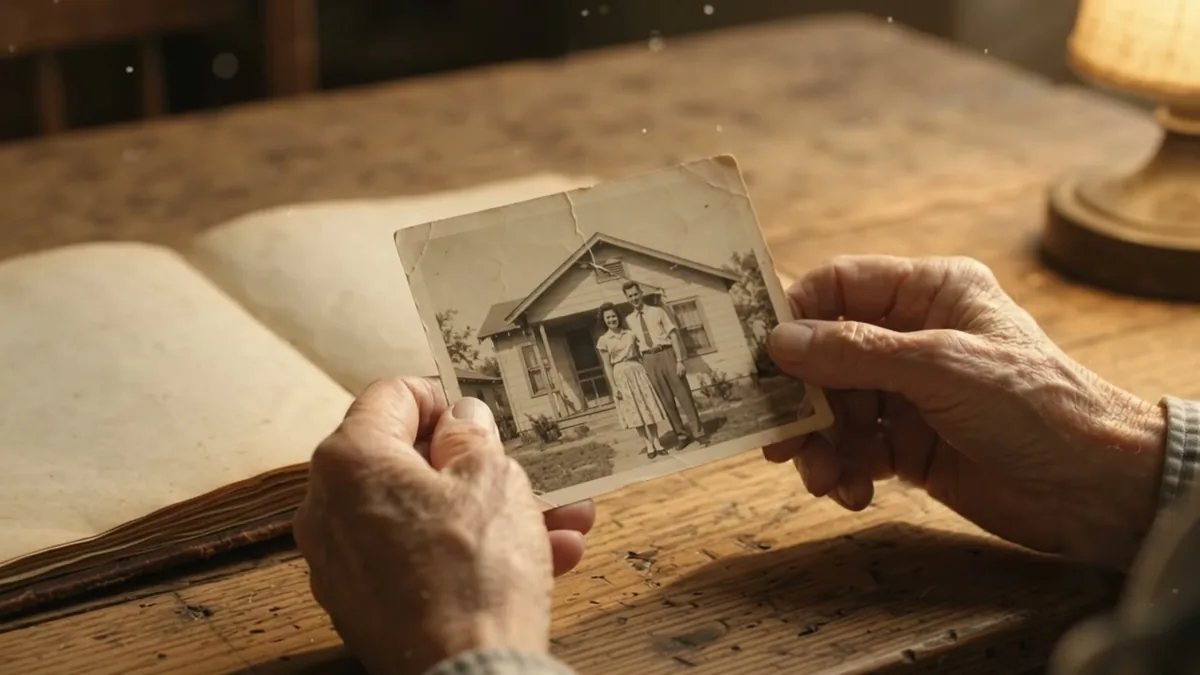
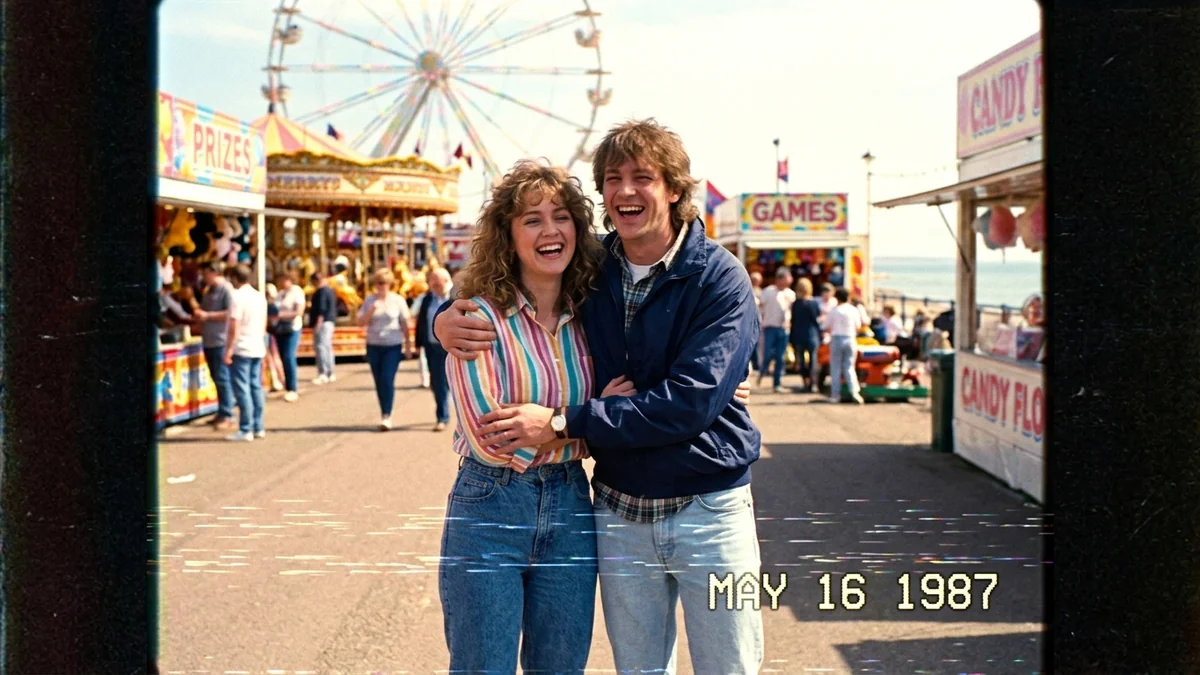
For a parents' or grandparents' wedding photo rather than a recent one, the bring an old photo to life prompt is built for exactly this, and pairs well with a nostalgic, slower pace. If the photo needs cleaning up first, repair it before animating it: see AI photo restoration prompts for that step. The VHS home-video prompt is also worth trying on an older wedding photo if you want a period, home-movie feel rather than a modern cinematic one.
Keeping it believable
- Less motion is usually more convincing. A small, natural movement, a blink, a breath, fabric shifting, holds up better than a dramatic one.
- Match the lighting you already have. Asking for new lighting that isn't in the photo is one of the easiest ways to make a clip look obviously generated.
- Keep clips short. 5 to 15 seconds is enough for this kind of effect. Longer clips make any small inconsistency more noticeable.
- Check faces closely before sharing. As with any AI edit of real people, look carefully at the result before you send it to the couple or the family.
Where to go from here
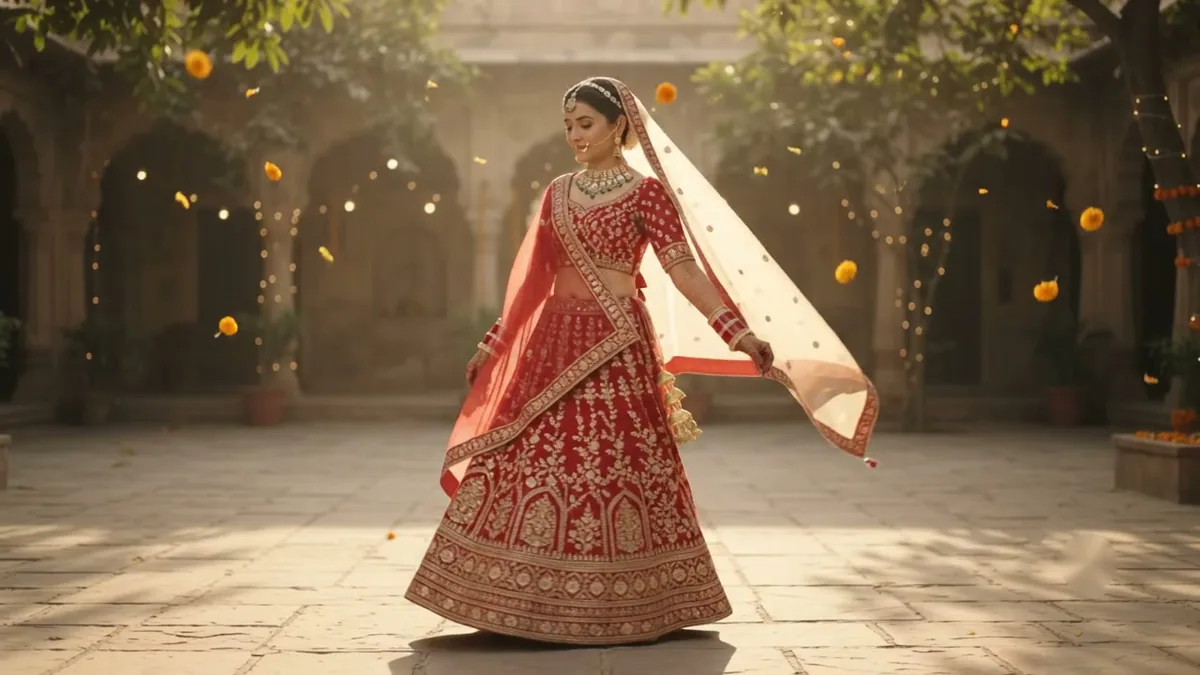
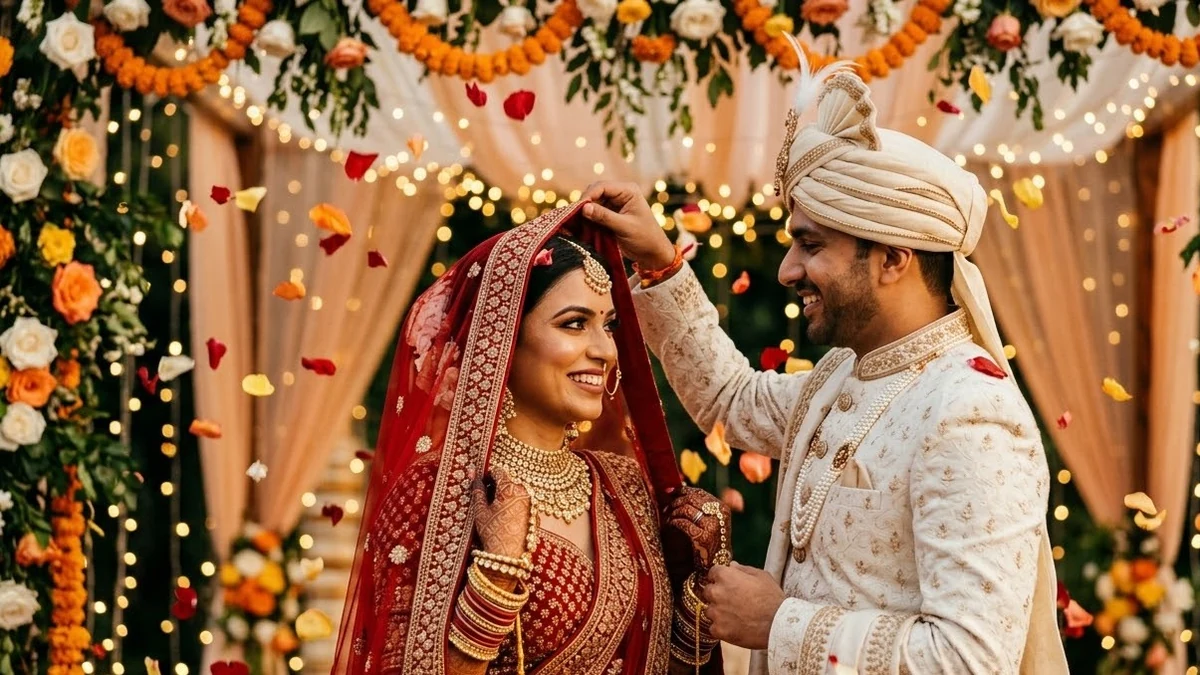
For the photo side of a wedding shoot, see AI prompts for Indian weddings. All the prompts above are free in the video generation prompts collection, and the prompt builder can adapt any of them to your own photos.
Quick checklist
- Start from one sharp, well-lit photo per clip.
- Describe one camera move or one kind of motion, not several at once.
- Always say to keep faces and outfits exactly as shown.
- List your photo order explicitly for a multi-photo highlight reel.
- Keep clips short, 5-15 seconds, for the most believable result.
Comments
No comments yet. Be the first to share what worked for you.