How to find your laptop's model and serial number without flipping it
Published
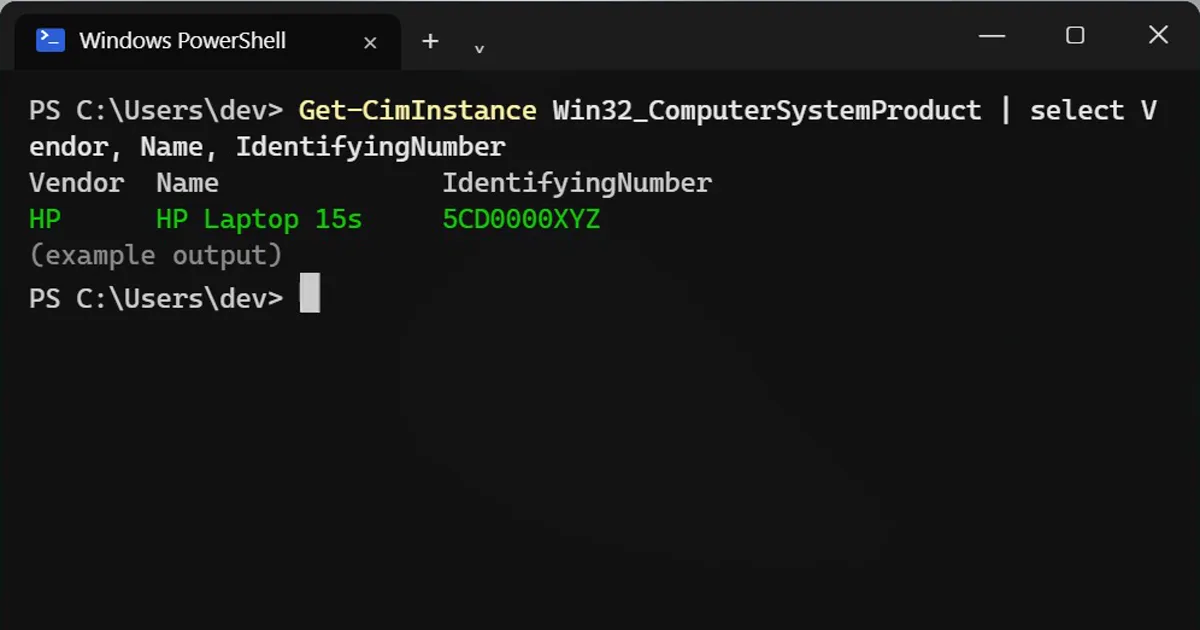
Short answerRun Get-CimInstance Win32_ComputerSystemProduct to see the maker, model and serial number (IdentifyingNumber), add Version on Lenovo, and Get-CimInstance Win32_BIOS for the BIOS version and date.
Warranty checks, driver downloads and repair shops all ask for your exact model and serial number. The sticker underneath is often worn off. Windows can read both from the laptop itself.
Step 1: Model and serial number
Get-CimInstance Win32_ComputerSystemProduct | select Vendor, Name, IdentifyingNumber
Vendor  Name              IdentifyingNumber
HP      HP Laptop 15s     5CD0000XYZ
IdentifyingNumber is your serial number. Dell calls it the Service Tag, Lenovo and HP call it the serial number. Paste it on the maker's support or warranty page to get the exact drivers and your warranty date.
Lenovo shows a code instead of a name?
Lenovo puts a machine type like 82XV in Name. Add Version to see the friendly model name:
Get-CimInstance Win32_ComputerSystemProduct | select Vendor, Name, Version, IdentifyingNumber
"To Be Filled By O.E.M."?
That's normal on a PC you built yourself: the motherboard maker never filled it in. Look up the motherboard model instead with Get-CimInstance Win32_BaseBoard | select Manufacturer, Product.
Step 2: BIOS version and date
Get-CimInstance Win32_BIOS | select SMBIOSBIOSVersion, ReleaseDate
SMBIOSBIOSVersion ReleaseDate
F.21              14-03-2023 05:30:00
BIOS older than about two years? Check the maker's support page. BIOS updates fix security holes and battery or sleep bugs. Only install one from the maker's own site or app, with the laptop plugged in, and never interrupt it.
Keep the serial private
Share the serial number with the maker's support, not in public posts or screenshots. It can be used to make fake warranty claims.
On a Mac
Open the Apple menu > About This Mac. The model and serial number are right there, and More Info shows your warranty coverage.
More quick tips
More prompts on this topic
- Write a short professional bioChatGPT · Gemini · Claude
- Write an Instagram bio that convertsChatGPT · Gemini · Claude



Comments
No comments yet. Be the first to share what worked for you.