Three PowerShell checks that show if your Windows PC is really protected
Published
Short answerRun Get-NetFirewallProfile to see if the firewall is on for each network type, Get-HotFix to see when updates last installed, and Get-MpComputerStatus to see if Microsoft Defender is running and how old its virus definitions are.
The shield icon says you're protected. These three lines show whether it's true. Each one only reads settings and changes nothing.
Check 1: Is the firewall on?
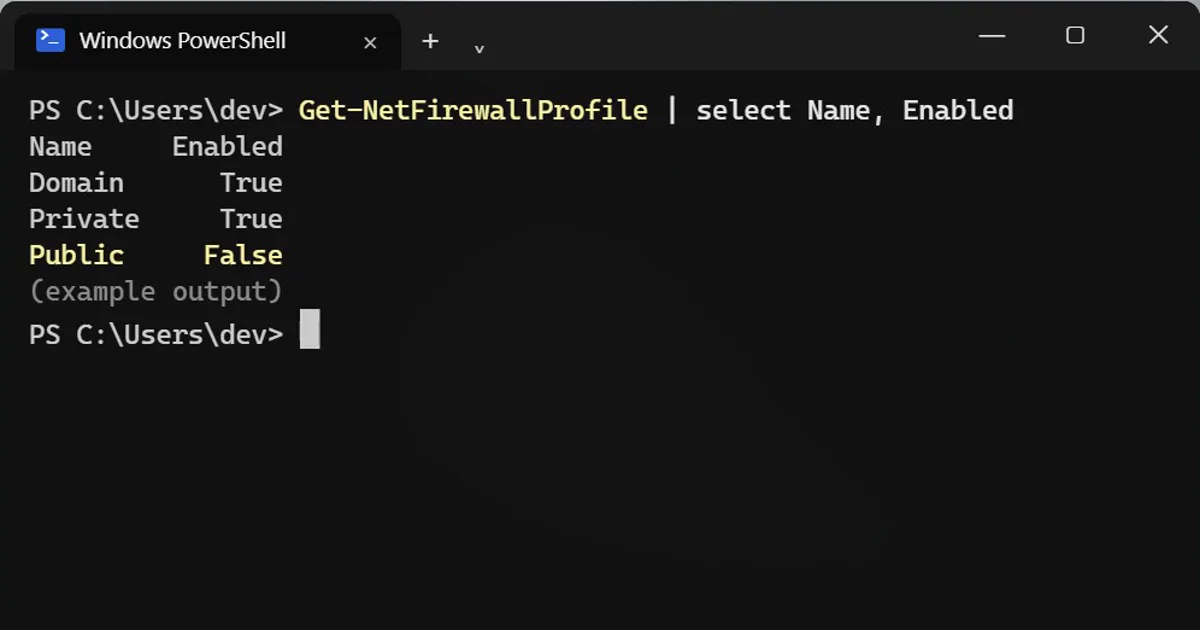
Get-NetFirewallProfile | select Name, Enabled
Name     Enabled
Domain      True
Private     True
Public     False
Windows has three firewall profiles. Public is the one used on café, hotel and airport Wi-Fi, so Public False is the dangerous one. Turn it back on in Windows Security > Firewall & network protection.
Check 2: When did updates last install?
Get-HotFix | sort InstalledOn -Descending | select -First 3 HotFixID, Description, InstalledOn
HotFixID    Description       InstalledOn
KB5099999   Security Update   15-10-2026
KB5099888   Update            02-10-2026
Microsoft releases security fixes every month on the second Tuesday ("Patch Tuesday"). Newest one older than about two months? Open Settings > Windows Update and see what's stuck. This list doesn't show every update (Store and driver updates are missing), but monthly security updates appear here.
Check 3: Is the antivirus running and up to date?
Get-MpComputerStatus | select RealTimeProtectionEnabled, AntivirusSignatureAge
RealTimeProtectionEnabled AntivirusSignatureAge
                     True                     0
AntivirusSignatureAge is in days. 0 or 1 is perfect. A week or more means Defender isn't getting its updates.
Using another antivirus such as Norton, McAfee or Quick Heal? Then Defender steps aside and shows False here, which is normal. Check that antivirus's own window instead. You should have one of them on, not zero.
All three good?
Firewall on, updates fresh, antivirus current. That covers the basics. For the next step, check what Defender is told to skip: Check if your antivirus has a blind spot.
On a Mac
System Settings > Network > Firewall shows the firewall, and System Settings > General > Software Update shows updates. macOS has XProtect built in and updates it automatically.



Comments
No comments yet. Be the first to share what worked for you.