How to check if your PC is sending you to the wrong websites
Published
Short answerYour PC checks the hosts file first, then any proxy, then your DNS server. Print the non-comment lines of the hosts file, read the proxy settings from the registry and list your DNS servers with Get-DnsClientServerAddress. Empty hosts and a proxy of 0 are normal.
When you type an address, three settings decide where your browser actually goes: the hosts file, the proxy and your DNS server. Malware and badly behaved "optimizer" apps sometimes change one of them, so a bank address quietly lands on a copy of the site. Here is how to look at all three.
1. The hosts file
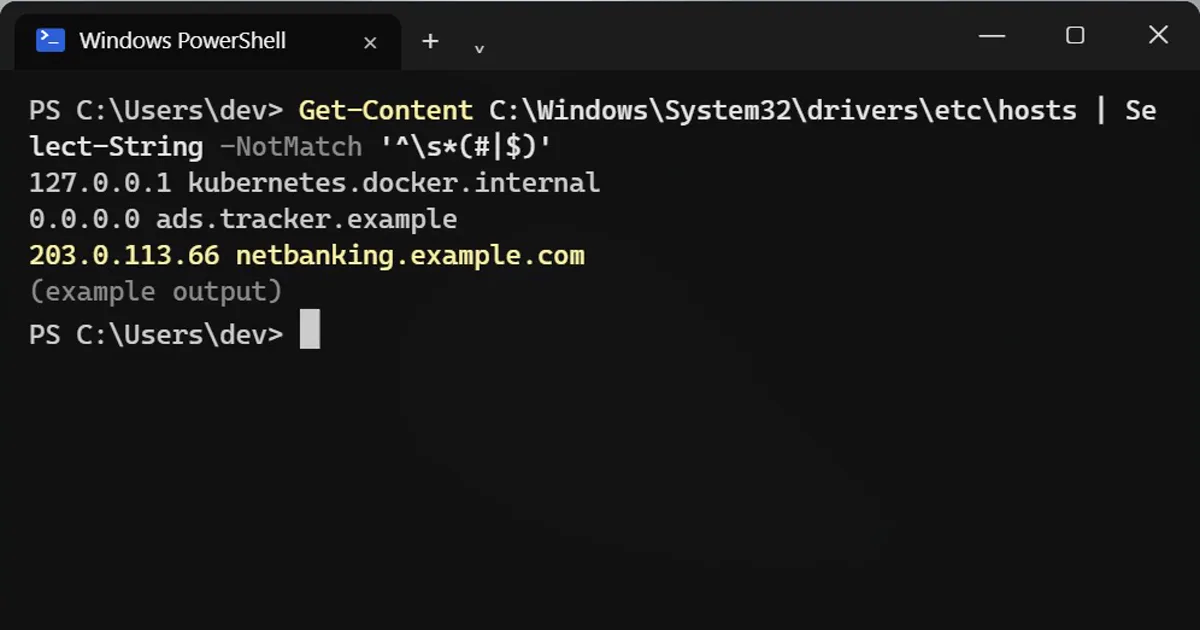
Your PC reads this file before it asks the internet. Print only the lines that are not comments:
Get-Content C:\Windows\System32\drivers\etc\hosts | Select-String -NotMatch '^\s*(#|$)'
127.0.0.1 kubernetes.docker.internal
0.0.0.0 ads.example.com
- Empty is normal.
- Docker lines, and ad blockers that point names at
0.0.0.0or127.0.0.1, are fine. - A normal-looking IP address next to your bank, Google or Microsoft is the red flag.
2. The proxy
A proxy is another computer that your pages pass through on the way out.
Get-ItemProperty 'HKCU:\Software\Microsoft\Windows\CurrentVersion\Internet Settings' | Select-Object ProxyEnable, ProxyServer, AutoConfigURL
At home, ProxyEnable of 0 with empty fields is normal. An AutoConfigURL you never set can send every page through someone else's server. Work and school PCs often use one on purpose.
3. The DNS server
DNS turns names into addresses. Your DNS server is whoever answers that question for you.
Get-DnsClientServerAddress -AddressFamily IPv4 | Where-Object ServerAddresses | Select-Object InterfaceAlias, ServerAddresses
Your router (often an address like 192.168.1.1), your internet provider, 1.1.1.1 or 8.8.8.8 are all normal. An address you do not recognise, on a PC you did not set up that way, is worth searching.
How to fix what you find
- Proxy: turn it off in Settings, Network & internet, Proxy.
- Hosts file: open Notepad as administrator, open the hosts file and delete the odd lines. Save it.
- DNS cache: then clear the old answers. In PowerShell as administrator, run:
ipconfig /flushdns
On this Windows build the command needs administrator rights, so a normal window answers The requested operation requires elevation.
On a Mac
The same file lives at /etc/hosts. Print it with cat /etc/hosts.
Safety
On a work or school PC, ask IT before changing anything. These settings are often set by the organisation for a reason. Changing a setting you do not understand can break your internet access.
More quick tips
More prompts on this topic
- Podcast host in the studioGemini · ChatGPT



Comments
No comments yet. Be the first to share what worked for you.