ChatGPT Images 2.5 and Sketch: how to write prompts that work with your drawing
Published
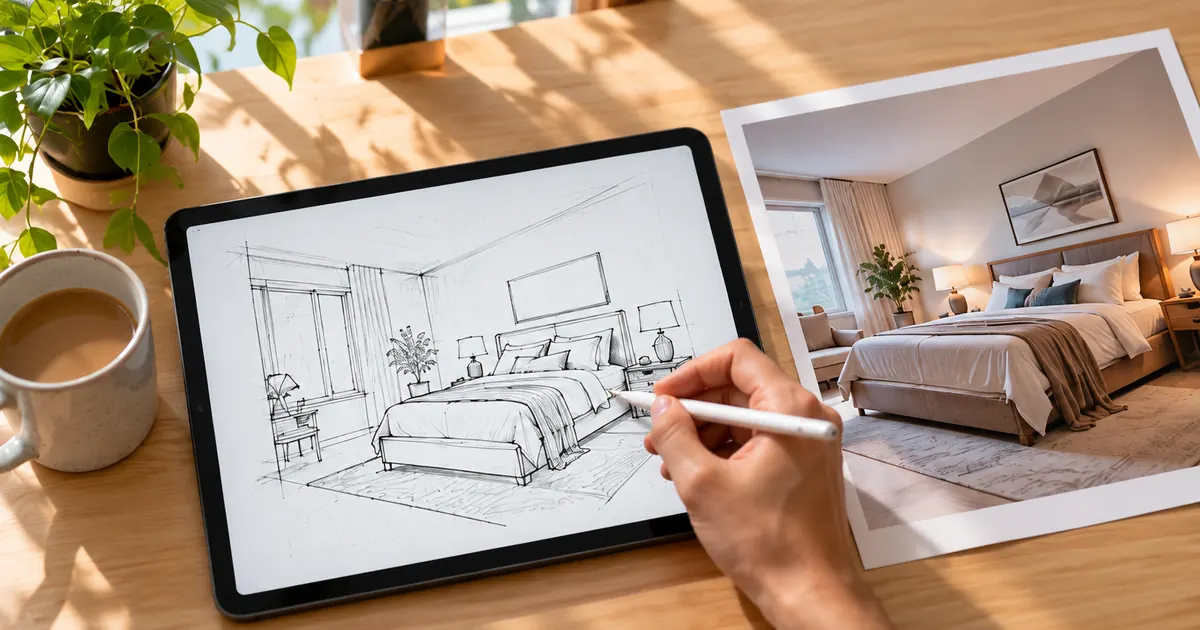
Short answerDraw only the layout (where things go and how big they are), then write the rest in words: the subject, the style, the light and the text. The sketch answers "where", the prompt answers "what" and "how it should look".
On 8 September 2026 OpenAI released ChatGPT Images 2.5, a new version of the image model inside ChatGPT. The headline feature is Sketch: you can draw straight into the chat and ChatGPT uses your drawing as a guide for the finished picture. It's available on all ChatGPT plans, including free, on web, desktop and mobile.
Sketch solves a problem every image prompter knows. You can describe what you want in words, but where things go is hard to say. "Put the logo top left, the headline in the middle and the photo on the right, slightly smaller" often comes back wrong. A ten-second doodle gets it right the first time.
This guide explains how to use Sketch, what to write next to the drawing, and gives you prompts to copy.
How to open Sketch
In ChatGPT, type @Sketch in the message box, or choose the canvas option from the menu. A drawing area opens. Draw with your finger, a mouse or a stylus, add a text prompt, and send both together.
You don't need to draw well. Boxes, circles and stick figures are enough. ChatGPT reads the shapes as a layout, not as a style to copy.
What the sketch should do, and what the words should do
The simplest rule: the sketch shows position and size. The words describe everything else.
| Put it in the sketch | Put it in the words |
|---|---|
| Where each object sits | What each object is |
| How big things are compared with each other | Colours, materials and textures |
| The horizon line or the camera angle | The style (photo, watercolour, 3D, poster) |
| Where text should go (draw a box) | The exact words of the text, in quotes |
| The rough pose of a person | Light, mood and time of day |
If you only sketch and write "make this real", ChatGPT has to guess the style, colours and details. If you only write, you're back to guessing the layout. Use both.
A prompt to pair with any sketch
Draw your layout, then paste this and fill in the brackets:
Use my sketch as the layout. Keep the position and size of every shape exactly where I drew it.

What the shapes are: [LIST, e.g. the big circle is a round wooden table, the two small boxes are chairs, the rectangle at the back is a window].
Style: [STYLE, e.g. a realistic interior photo / a watercolour illustration / a flat vector poster].
Light and mood: [LIGHT, e.g. soft morning daylight from the window, calm and warm].
Text: [TEXT IN QUOTES, or "no text"].
Shape: [RATIO, e.g. 16:9 landscape / 4:5 portrait].
Labelling the shapes is the step most people skip. A circle could be a table, a sun or a face. Say which.
Example: a poster from a doodle
Posters are where Sketch helps most, because a poster is mostly layout. Draw a box at the top for the headline, a big shape in the middle for the main picture, and a thin strip at the bottom for the date and place. Then write:
Use my sketch as the poster layout. Keep every box where I drew it.

Top box: the headline "[HEADLINE, e.g. Diwali Mela 2026]" in bold festive lettering.
Middle shape: [MAIN PICTURE, e.g. a glowing brass diya surrounded by marigold flowers].
Bottom strip: "[DETAILS, e.g. 7 Nov · Community Hall · 6 PM]" in clean, easy-to-read text.
Style: warm, rich festive poster, deep red and gold, soft glow. Portrait 4:5.
If you'd rather start from a finished prompt and skip the drawing, the festival greeting poster prompt and the invitation card prompt give you the same structure in words.
Example: rearranging a room
Sketch a top-down or front view of a room: the window, the bed, the desk. Then:
Use my sketch as the room layout, seen from the doorway. Keep the furniture where I drew it.

The tall rectangle on the left is a wardrobe, the long box at the back is a bed, the small box on the right is a desk under the window.
Style: a realistic interior photo of a small, bright bedroom, light wood and white walls, a few plants, soft afternoon light. 16:9.
This is a quick way to test a furniture layout before you move anything.
Fixing common problems
It ignored my layout. Start the prompt with "Keep the position and size of every shape exactly where I drew it." Put it first, not at the end.
It copied my messy lines. Add "Do not copy the sketch's line style. Use it only for layout."
It misread a shape. Label it. "The triangle is a mountain, not a tent."
The text is wrong or misspelled. Put every word in quotes, keep it short, and draw a box where it should go. Check spelling in the result before you share it.
One small part is wrong. Images 2.5 also added editing tools, including a Comment option: tap the spot on the image and write what to change, such as "make this lamp brass". It's faster than rewriting the whole prompt.
Sketch, templates or a written prompt?
Images 2.5 also includes guided templates for common formats like posters, logos and product shots. They ask you questions step by step. Here's a quick way to choose:
- Layout matters most (posters, room plans, a specific pose): use Sketch.
- You want a standard format fast and don't mind a typical result: try a template.
- You care most about style, mood and detail: write a full prompt, or start from a ready-made one.
The written prompt is still the part that decides how the picture looks. The PromptUp prompt library has more than 1,400 free, ready-to-copy prompts for posters, cards, photos and video, and the image generation prompts page collects the ones for making pictures from scratch. Pick one, fill in the brackets, then add your sketch in ChatGPT for the layout.
Quick checklist
- Type
@Sketchor pick the canvas from the menu. - Draw boxes and shapes for position and size only.
- Label every shape in the prompt.
- Put style, colours, light and mood in words.
- Put exact text in quotes and draw a box for it.
- Fix small parts with a comment instead of starting again.
Prompts to try
More prompt guides
 25 September 2026The 80s AI photo trend: prompts for retro Bollywood, family album and couple portraits
 25 September 2026AI action figure prompts: turn your photo into a boxed toy, a chibi figurine or a brick minifigure
 25 September 2026Diwali 2026 AI photo prompts: festive portraits, family photos, rangoli and shop banners
Comments
No comments yet. Be the first to share what worked for you.