How to make Matrix-style rain in Windows PowerShell
Published
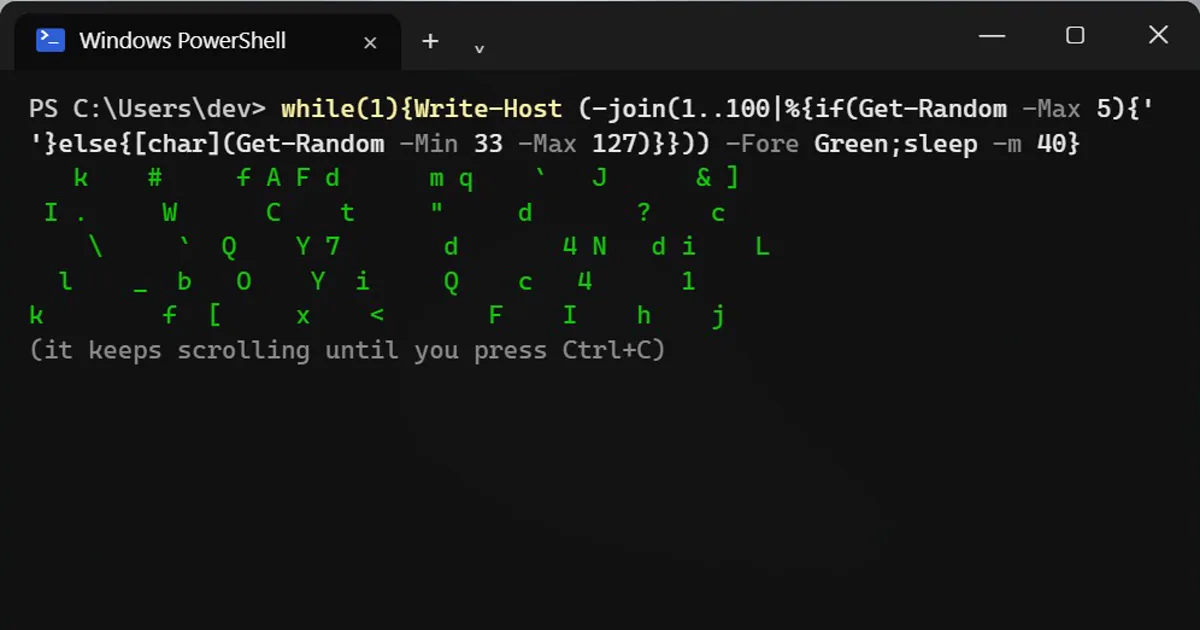
Short answerPaste a short while loop into Windows PowerShell 5.1 to scroll rows of random green characters. A longer version remembers each column, pushes rows down and redraws from the top corner so the rain really falls. Ctrl+C stops it, and it only prints characters on your own screen.
This is a harmless party trick: Matrix-style rain in Windows PowerShell 5.1, with no download. It only prints random characters on your own screen. Nothing is saved, changed or sent. Press Ctrl+C to stop it.
Version 1: scrolling rain
while(1){Write-Host (-join(1..100|%{if(Get-Random -Max 5){' '}else{[char](Get-Random -Min 33 -Max 127)}})) -Fore Green;sleep -m 40}Every 40 milliseconds it prints a row of 100 spots. Get-Random -Max 5 gives 0 one time in five. Those spots get a random printable character, and the rest stay blank. -Fore Green makes it green.
Version 2: real falling streaks
$w=[Console]::WindowWidth-1;$h=[Console]::WindowHeight-1;$a=@(0)*$w;$r=@();cls;while(1){$t=-join(0..($w-1)|%{if($a[$_]){$a[$_]--;[char](Get-Random -Min 33 -Max 127)}else{if(!(Get-Random -Max 40)){$a[$_]=Get-Random -Min 5 -Max 20};' '}});$r=@($t)+$r|select -First $h;[Console]::SetCursorPosition(0,0);$r|%{Write-Host $_ -Fore Green};sleep -m 50}How it works:
$aremembers how many more characters each column still has to drop.- Each frame builds a new top row, and a column starts a streak 1 time in 40.
- It pushes the older rows down and keeps only as many as fit the window.
SetCursorPosition(0,0)redraws from the top-left corner, which makes the rain fall instead of scroll.
Tips
- Maximise the window first. The script reads the window size once when it starts.
- In Windows Terminal, press Alt+Enter for full screen.
- Try changing the numbers: a smaller
sleep -mis faster, and-Max 40controls how dense the rain is. - Press Ctrl+C to leave.
Good to know
This works in Windows PowerShell 5.1. The cursor and colour behaviour can differ in other terminals. If it looks odd, resize the window and run it again.
More quick tips
More prompts on this topic
- Eisenhower matrix for a messy to-do listChatGPT · Gemini · Claude
- Compare vendors in a decision matrixChatGPT · Gemini · Claude



Comments
No comments yet. Be the first to share what worked for you.