Free up Google storage by deleting old big emails
Published
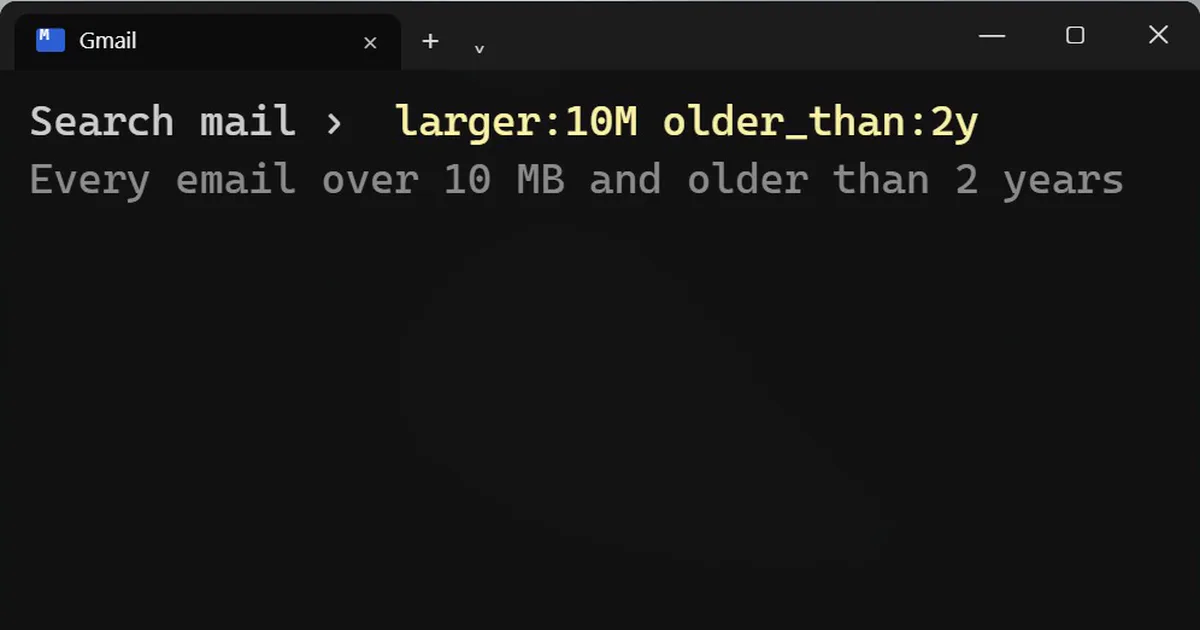
Short answerIn the Gmail search bar type larger:10M older_than:2y, look through the results, delete what you do not need, then empty Trash. The space only comes back after Trash is emptied, and Gmail, Drive and Photos share one pool of storage.
When Google says your storage is full, the first guess is photos. Often the real cause is old emails with big attachments that you will never open again. Here is how to find and clear them.
Step 1: Search for big, old emails
In the Gmail search bar, type:
larger:10M older_than:2y
larger:10Mshows every email over 10 megabytes.older_than:2ykeeps only the ones older than two years.
You can change the numbers. larger:25M older_than:1y is a tighter search for the biggest offenders.
Step 2: Look before you delete
Scroll through the list first and keep anything you still need, such as old invoices, tickets or documents. Move those to your computer or keep them in a labelled folder.
Then select all and delete.
Step 3: Empty Trash
Open Trash and click Empty Trash now. The space only comes back once Trash is empty. Until then, the deleted emails still count against your storage.
Step 4: Find the biggest files in Drive
Go to:
drive.google.com/drive/quota
It lists your Drive files, biggest first. Old videos and zip files are usually near the top.
Why this frees up more than you expect
Gmail, Google Drive and Google Photos share one pool of storage. Clearing any of them frees space for all three. A single old email with a 25 MB attachment is the same size as several photos.
If you need more help finding things to clear
The same idea works on your computer, where a few old files often take most of the space:
More prompts on this topic
- Find dead code and safe things to deleteClaude · ChatGPT · Claude Code



Comments
No comments yet. Be the first to share what worked for you.