How to see what woke your Windows PC from sleep
Published
Short answerRun powercfg /lastwake to see the last wake source, read the last five wake-ups from the Power-Troubleshooter event log, and list the devices allowed to wake the PC with powercfg /devicequery wake_armed. A Timer from UpdateOrchestrator means Windows Update.
A laptop that is warm in your bag, a battery that drained overnight, a PC lighting up at 3 AM: Windows keeps a record of every wake-up, and it usually names the cause.
Step 1: The last wake
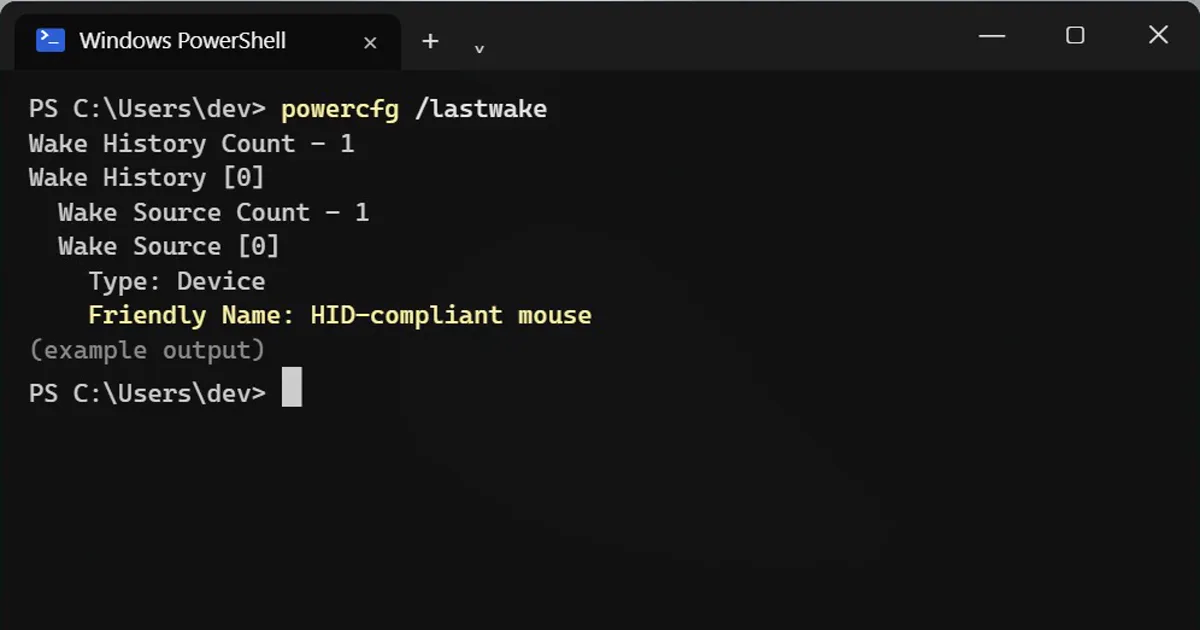
powercfg /lastwake
It may name a device, often the mouse, keyboard or network card, or it may list nothing. When it says nothing, the event log is the better source.
Step 2: Your last five wake-ups
Get-WinEvent -FilterHashtable @{LogName='System'; ProviderName='Microsoft-Windows-Power-Troubleshooter'; Id=1} -MaxEvents 5 | Format-List TimeCreated, MessageTimeCreated : 23-10-2026 03:12:08
Message : The system has resumed from sleep.
Wake Source: Timer - Windows will execute 'NT TASK\Microsoft\Windows\UpdateOrchestrator\Reboot'The example message above shows how Windows words a wake caused by Windows Update. Some PCs simply say Wake Source: Unknown, which is common.
Step 3: Who is allowed to wake it?
This one needs no administrator rights:
powercfg /devicequery wake_armed
It lists the devices that are allowed to wake your PC. To stop one, open Device Manager, open the device, go to the Power Management tab and untick Allow this device to wake the computer.
Timers
Programs can also set wake timers. Run powercfg /waketimers as administrator to see the active ones. If you want none at all, open Power Options, Change plan settings, Change advanced power settings, Sleep, Allow wake timers, and choose Disable.
What is normal?
Thin laptops with Modern Standby, which you can confirm with powercfg /a, wake briefly to sync mail and updates. That is by design and usually lasts a few seconds. Repeated long wake-ups with a clear culprit, like a device or a scheduled task, are the ones to fix.
Safety
Do not disable the wake option for the keyboard on a desktop that you wake with it. Change one thing at a time so you can tell what helped.



Comments
No comments yet. Be the first to share what worked for you.