Get every picture out of a Word file in one command
Published
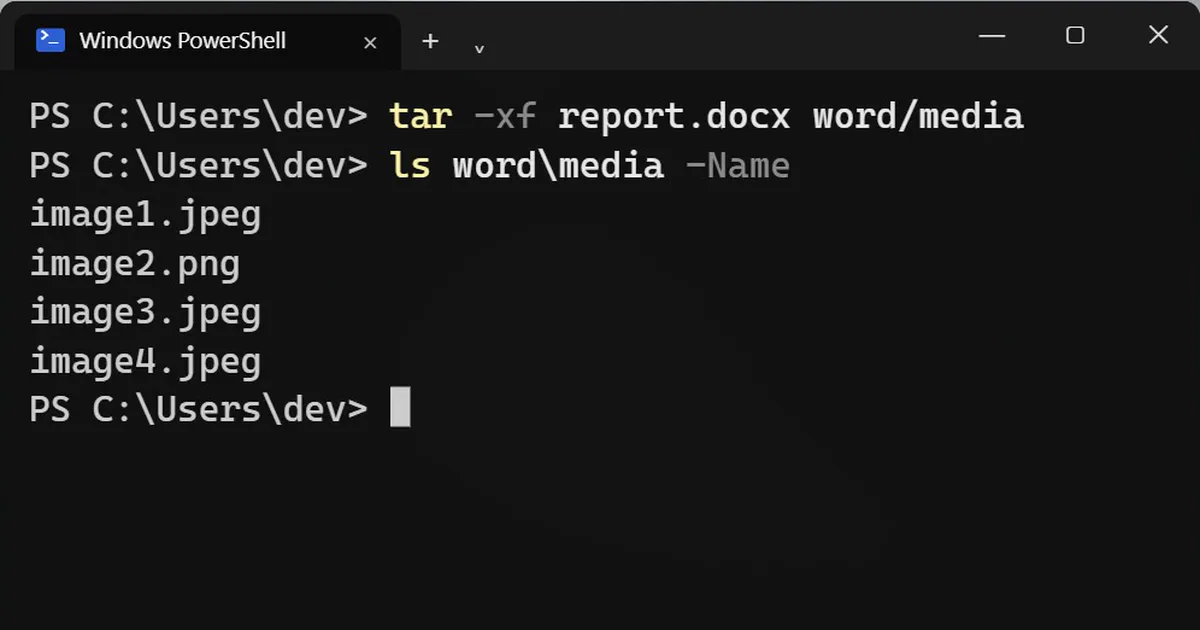
Short answerOpen a terminal in the folder and run tar -xf report.docx word/media. Every picture in the file appears in a new word\media folder. For PowerPoint use ppt/media, and for Excel use xl/media. It works for .docx, .pptx and .xlsx, not the old .doc.
Someone sends you a Word file full of photos, and you need the photos. Screenshots lose quality and take ages. You do not need them, because a modern Office file is really a zip folder, and the pictures are stored inside it as normal image files.
Step 1: Pull the pictures out
Open PowerShell or Terminal in the folder with the file and run:
tar -xf report.docx word/media
tar is built into Windows 10 and 11. It creates a word\media folder next to the file.
Step 2: See what you got
ls word\media -Name
Example output:
image1.jpeg
image2.png
image3.jpeg
image4.jpeg
These are the pictures as they were saved inside the file, which is usually much sharper than a screenshot. If someone cropped a picture in Word, you may even get the full, uncropped version.
PowerPoint and Excel work too
PowerPoint keeps pictures, and even videos, in ppt/media:
tar -xf slides.pptx ppt/media
For Excel files, use xl/media.
No terminal? Rename it
Make a copy of the file and change the end of its name from .docx to .zip. Open the zip in File Explorer and go to the word, then media folder.
On a Mac
unzip report.docx "word/media/*"
What does not work
Only the newer formats are zip folders: .docx, .pptx and .xlsx. The old .doc, .ppt and .xls files are not. Open one of those in Word and save it as .docx first.
More quick tips
More prompts on this topic
- Get the right Excel or Google Sheets formulaChatGPT · Gemini · Claude
- Build a small command-line toolClaude · ChatGPT · Gemini



Comments
No comments yet. Be the first to share what worked for you.