Shrink a photo under 50 KB for any online form
Published
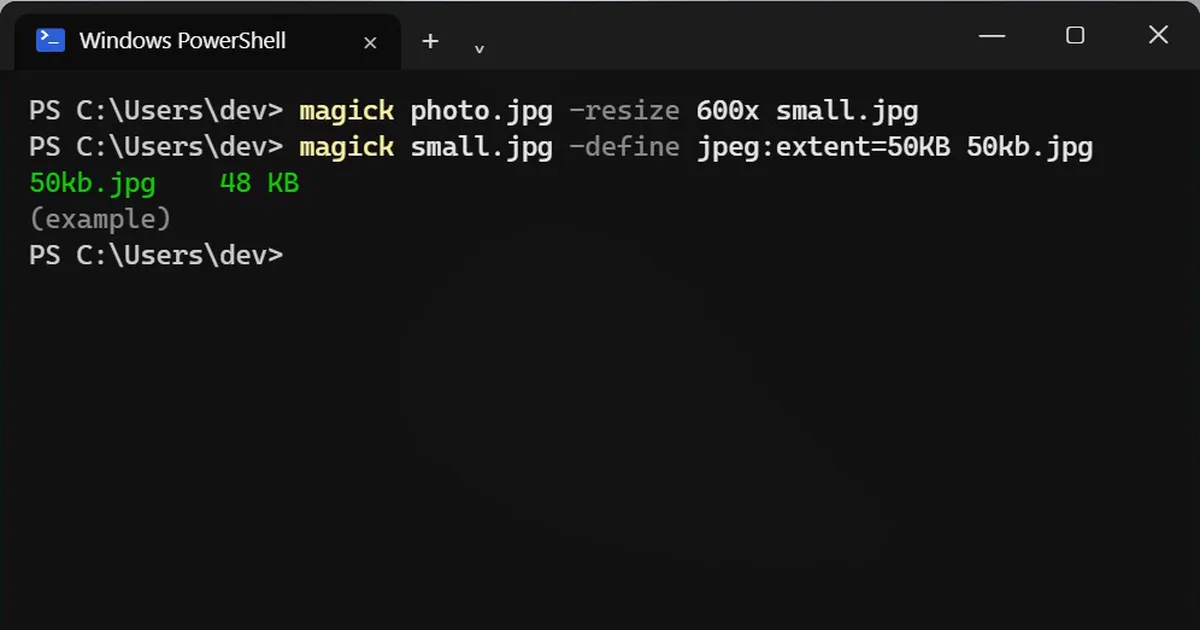
Short answerInstall ImageMagick, make the photo smaller with magick photo.jpg -resize 600x small.jpg, then cap the file size with magick small.jpg -define jpeg:extent=50KB 50kb.jpg. For exact pixels, use -resize 200x230^ -gravity center -extent 200x230. Your photo never leaves your computer.
Exam forms, job portals and government sites often want a photo "under 50 KB" or "200 x 230 pixels". Random compressor websites do it, but you are uploading your face and ID photos to a stranger's server. ImageMagick, a free and open-source image tool, does it on your own computer.
Step 1: Install ImageMagick
On Windows, open PowerShell or Terminal and run:
winget install --id ImageMagick.Q16-HDRI -e
Close and reopen the terminal afterwards so the magick command works. On a Mac with Homebrew:
brew install imagemagick
Step 2: Make the photo smaller
Open the terminal in the folder with your photo. 600x means 600 pixels wide, and the height follows so nothing gets stretched:
magick photo.jpg -resize 600x small.jpg
Step 3: Set the biggest file size allowed
jpeg:extent lowers the JPEG quality just enough to fit under the size you give:
magick small.jpg -define jpeg:extent=50KB 50kb.jpg
In our test, a 600-pixel-wide photo came out at about 48 KB. Change 50KB to whatever your form asks for, such as 20KB.
If it will not get small enough
Quality can only drop so far. If you ask for 5 KB from a big photo, the result can end up larger than the limit, not smaller. Make the pixels smaller first (for example -resize 300x), then run Step 3 again.
When the form wants exact pixels
Some forms ask for an exact size, such as 200 x 230 pixels. This fills that size and trims the edges, so your face is not squashed:
magick photo.jpg -resize 200x230^ -gravity center -extent 200x230 form.jpg
In the old Command Prompt, the ^ symbol is special, so put it in quotes there: -resize "200x230^". In PowerShell and on a Mac it works as shown.
Check before you upload
Right-click the new file and choose Properties to see its size, or run magick identify form.jpg to see its pixels. Check the exact rules on the form, because some also ask for a white background or a certain photo style.



Comments
No comments yet. Be the first to share what worked for you.