See what is eating your AI's memory with /context
Published · Updated
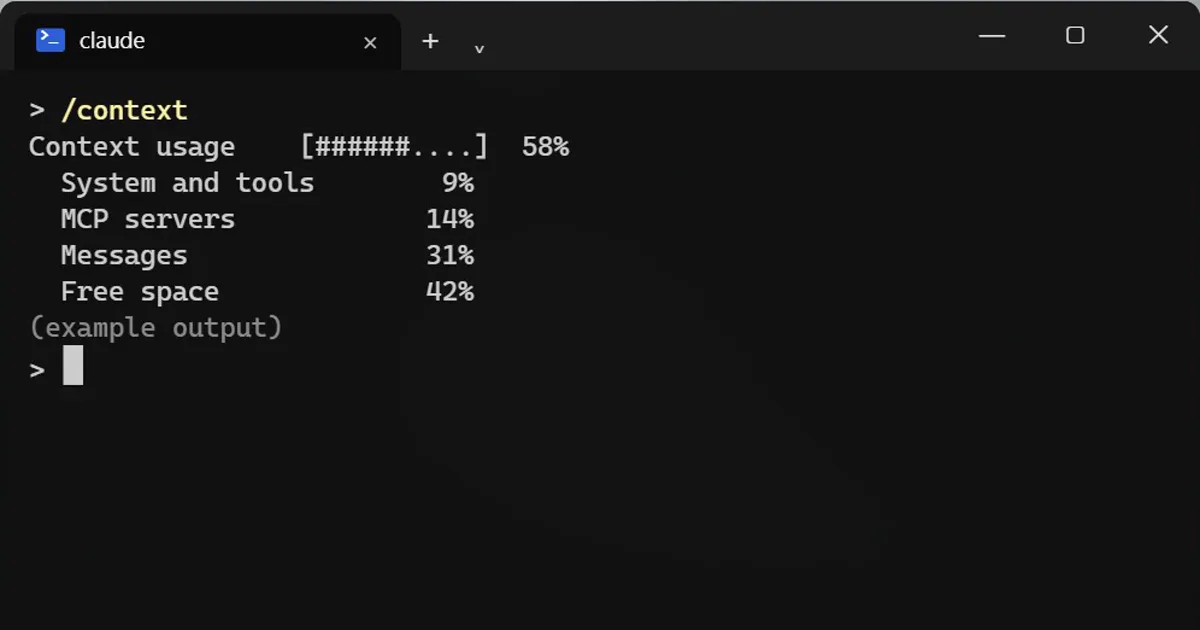
Short answerType /context to see your Claude Code context window as a colored grid. Use /compact with instructions to shrink the chat, and /clear between unrelated jobs. Switch off unused connected tools with /mcp.
Your AI gets slower and starts forgetting things when its memory, the context window, fills up. Here is how to look inside it.
See it
/context
It draws your context window as a coloured grid, shows what takes the most room, and gives tips for the heavy parts.
Tools can use space before you type
Connected tools (MCP servers) can take up room before you type a single word. Switch off the ones you are not using:
/mcp
Running out of room? Compact
/compact keep only the auth work
/compact summarises the chat. Tell it what to keep, and it focuses the summary on that.
Between unrelated jobs, clear
/clear
Old chat is sent again with every message, so stale context costs tokens each time. /clear costs nothing and starts fresh.
Rule of thumb
Look with /context before it overflows, compact when a job is long, clear when the next job is unrelated.
Signs it is time to look
- Claude asks something you already answered.
- It forgets a rule you set at the start of the session.
- Replies get slower in a long session.
When you notice these, run /context first to see what is taking the room, then compact or clear using the rule of thumb above.
More quick tips
More prompts on this topic
- Write a CLAUDE.md file for your projectClaude Code · Cursor



Comments
No comments yet. Be the first to share what worked for you.