Control Claude Code on your PC from your phone
Published
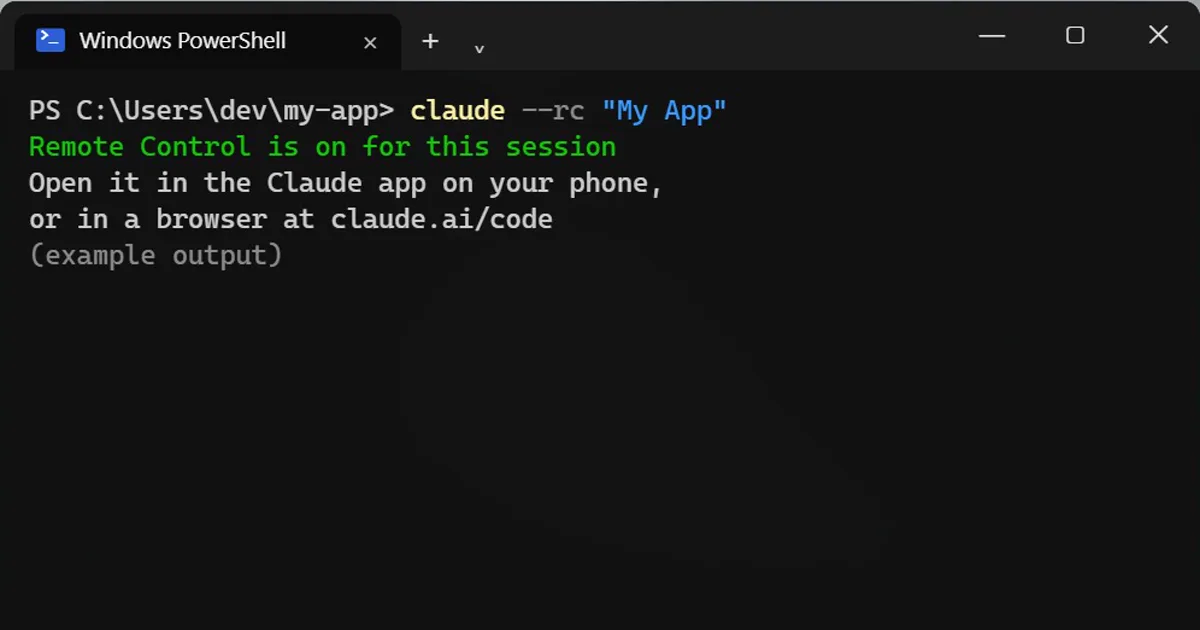
Short answerStart Claude Code with claude --rc, or type /remote-control inside a session. The work keeps running on your PC while your phone or browser acts as a window into the same session.
You start a long AI coding job, then you have to leave your desk. With remote control, you can check on that same session from your phone, or send it a new instruction, without moving any files.
Step 1: Start it with the flag
claude --rc "My App"
The name in quotes is optional. It just helps you find the session later on your phone.
Already inside a session?
Type this instead:
/remote-control
/rc is the short version.
What actually happens
- Claude Code keeps running on your own PC. Your files, tools and settings never move to the phone.
- The phone (or any browser) is a window into that session. You can send a message from the terminal, the browser or the phone, and they stay in sync.
- You can send a photo from your phone too.
- If your laptop sleeps or the Wi-Fi drops, the session reconnects by itself when the PC is back online.
Limits to know
- Your PC has to stay on and online. If it is switched off, nothing runs.
- You need to be signed in with a Claude account. An API key alone is not enough.
- Claude Code changes often. If a command is different on your version, type
/helpor check the official docs.
More quick tips
More prompts on this topic
- Plan a deep focus work sessionChatGPT · Gemini · Claude
- Plan a feature before writing any codeClaude · ChatGPT · Claude Code
- Write a CLAUDE.md file for your projectClaude Code · Cursor
Keep reading
All guides →


Comments
No comments yet. Be the first to share what worked for you.