Talk to Claude Code instead of typing with /voice
Published · Updated
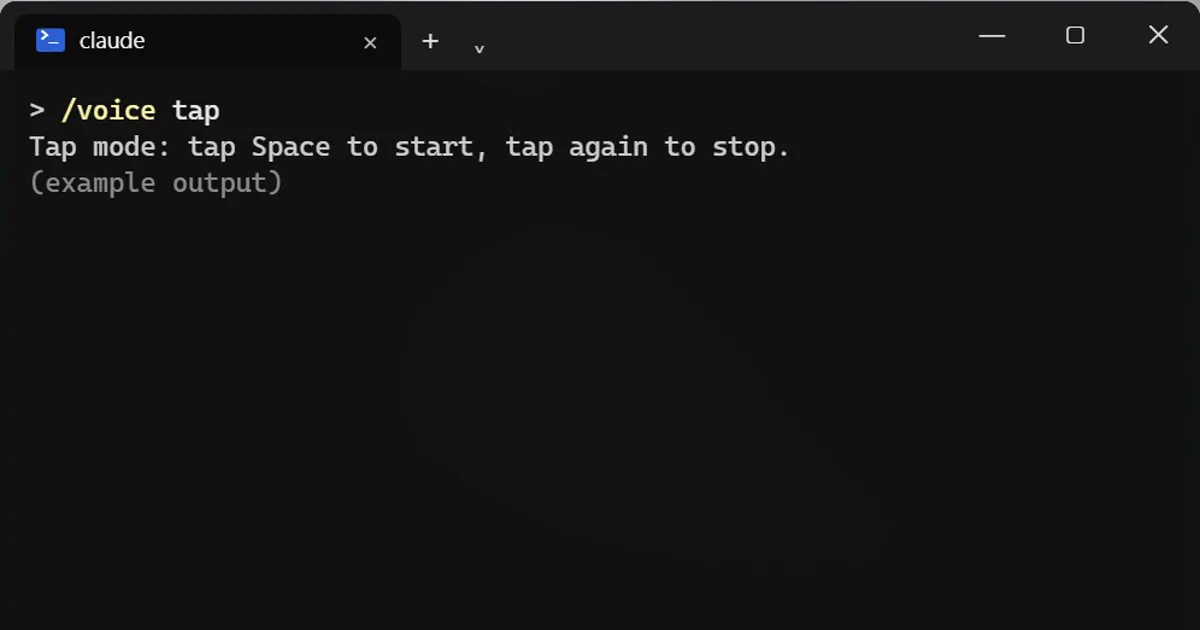
Short answerType /voice in Claude Code, then hold the space bar while you speak and let go to put your words in the prompt. /voice tap switches to tap-to-start and tap-to-stop, and /voice off turns it off. It needs a Claude account login.
You can talk to your terminal, with no extra app.
Turn it on
/voice
Use it
Hold the space bar while you speak, let go, and your words show up in the prompt.
Prefer not to hold a key?
/voice tap
Now you tap once to start and tap again to stop.
Turn it off
/voice off
What you need
You must be signed in with a Claude account.
When it helps
Long, messy explanations. Say it out loud, then fix the text. Always read the transcript before you send it, since speech can be misheard, especially for file names and code.
Tips for a clean transcript
- Say the goal first, then the details, in the same order you would type a good prompt.
- Speak in full sentences and pause between ideas. A transcript with clear breaks is quicker to fix.
- Do not dictate file names, flags or code. Leave a gap and type them afterwards, since those are the words most often misheard.
- A quiet room or a headset helps. Background noise makes the transcript worse.
A simple way to start
Use your voice for the first draft of a long request, such as describing a bug and what you already tried. Then switch to the keyboard to add exact paths and names. You get the speed of talking and the precision of typing.
More quick tips
More prompts on this topic
- Write a CLAUDE.md file for your projectClaude Code · Cursor



Comments
No comments yet. Be the first to share what worked for you.