AI graduation photo prompts: a proper gown-and-cap shoot from one selfie
Published
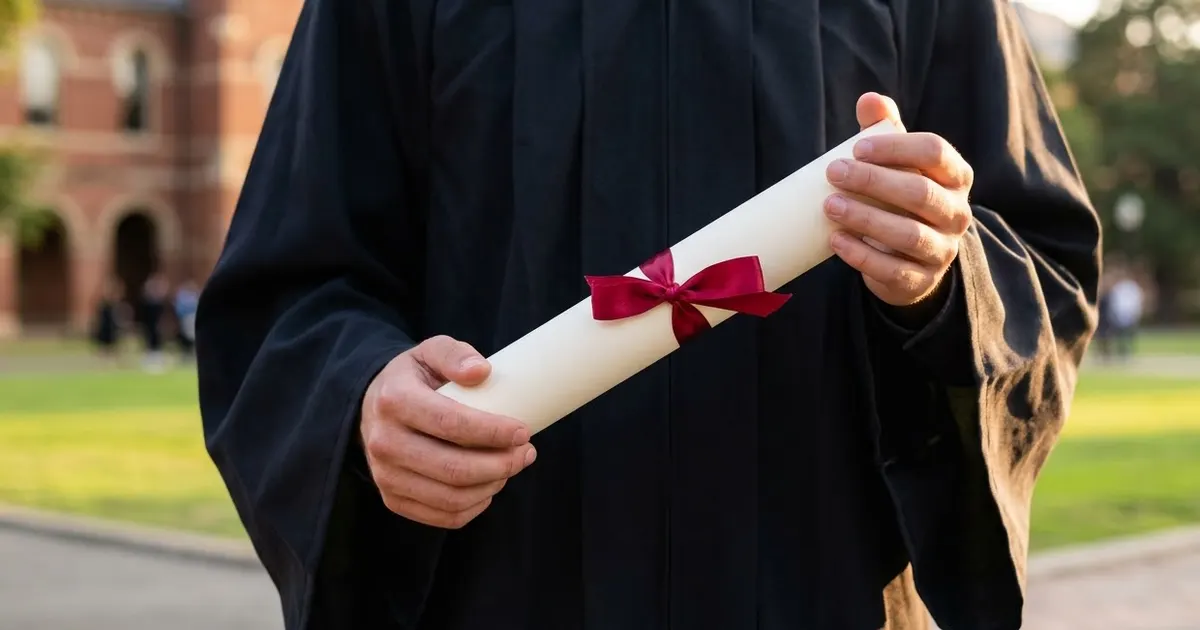
Short answerUpload one clear, well-lit photo, say "keep my face and features exactly the same", then describe the gown colour, the background and the mood. Add the cap toss and the announcement card as separate prompts once the portrait looks right.
Not everyone gets a proper graduation shoot. The ceremony is rushed, the gown is borrowed for ten minutes, or the actual photos come out blurry and badly lit. AI can rebuild that moment from a normal photo: the gown, the cap, the campus background and the proud smile, without changing who you actually are in the photo.
This works the same way as any good AI photo edit: keep the face, change the costume and the setting, and describe it with enough detail that the result looks like a photo, not a costume sticker pasted onto your face.
Start with the portrait
The core prompt for this is the graduation portrait prompt. Upload a clear, waist-up photo and use something like this:
Turn this photo into a graduation portrait. Keep my face and features exactly the same.

Put me in a [COLOUR] graduation gown and cap with a [COLOUR] stole. Background: [e.g. university library steps / campus lawn / an auditorium]. Bright, proud, natural smile as in the original. Sharp studio-quality light, realistic fabric folds, no extra text.
A few things that make the difference between a convincing result and an obvious edit:
- Use a waist-up or half-body photo. A full-body shot leaves too little face detail for the AI to work with, and the face is the part that has to stay right.
- Name a real gown colour. Most universities use black, but some use a specific colour for the gown or stole. If yours does, say so, since "a graduation gown" on its own usually comes back plain black.
- Say "keep my face and features exactly the same" first, before describing anything else. Putting it first makes it less likely to get lost once the AI is also handling the gown, the cap and the background.
Add family or friends
If you have a group photo from the day, or want to build one, the graduate with family prompt keeps every face unchanged while adding the gown, the diploma and a campus setting around the whole group:
Turn this photo into a graduation celebration with my family. Keep every face exactly the same.

I wear a gown and cap holding a diploma, family members on both sides with flowers, a university lawn behind, warm sunlight, proud smiles, natural colours. Extra instructions: [e.g. my mother is holding my hand / keep everyone's original clothing].
Use a photo where everyone is already facing the camera. The AI can change the background and add the gown convincingly, but it struggles to turn someone side-on into someone looking at the camera without the result looking off.
The cap toss, animated
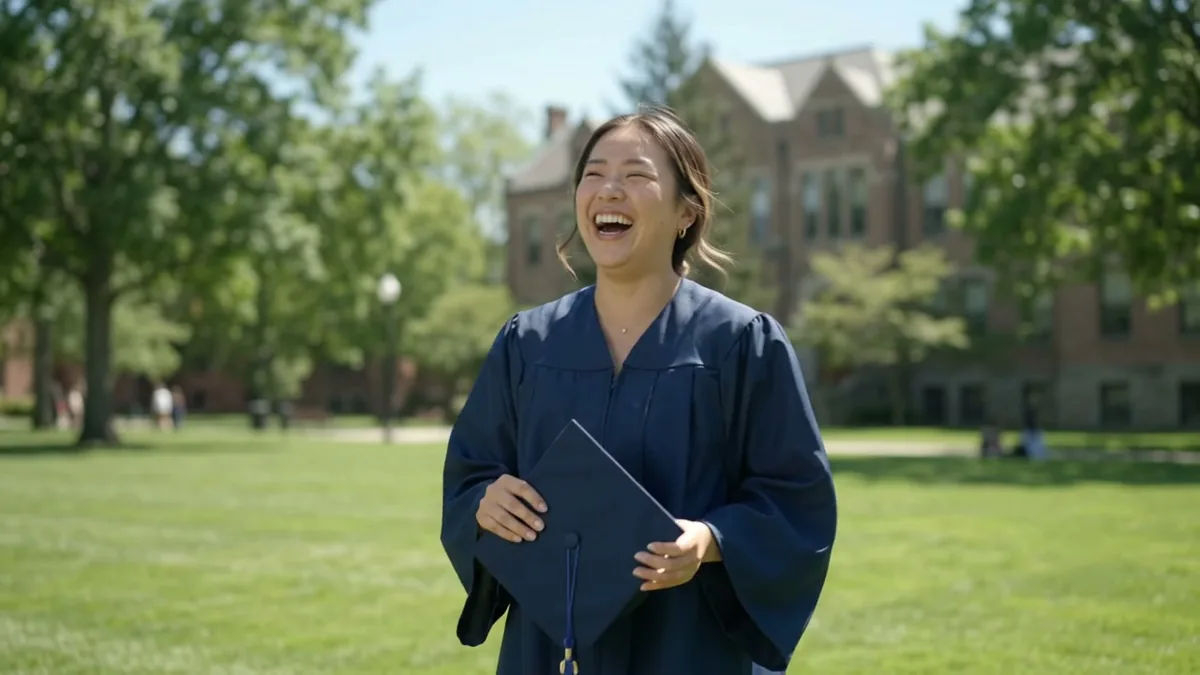
Once you have a portrait you like, the cap-toss video prompt turns the still photo into a short clip: the cap flies up, the gown moves, the camera tilts to follow it.
Animate this graduation photo: the graduate laughs and tosses the [CAP COLOUR] cap into the air, other caps fly up behind them, gown fluttering, camera slowly tilts up following the caps, bright sunny mood. Keep the face and features exactly the same, cinematic slow motion, 5 seconds.
Leave some empty space above the head in the photo you start from. The AI needs that room to animate the cap flying up, and a tightly cropped photo leaves it nowhere to put the motion.
For a wider, ceremony-style version with a crowd, the graduation ceremony cap toss prompt builds the whole scene from a short description instead of one photo, useful if you want a general graduation clip rather than one built around your own picture.
An announcement card to send around
Family group chats usually want something they can forward, not just a photo. The graduation announcement card prompt builds a proper card:
Modern graduation announcement card. A [SCHOOL COLOUR] and gold palette, a mortarboard and diploma scroll illustration, confetti, headline "Class of [YEAR]", "[NAME], [DEGREE OR SCHOOL]", clean bold typography, celebratory but polished, space for a photo on one side.
Use your actual school colours if you know them. It's a small detail, but it's the one that makes the card look like it belongs to your graduation rather than a generic template.
Fixing common problems
The face changed slightly. Re-add "keep my face, skin tone and features exactly as in the original photo, do not smooth or beautify" and try again. Some tools drift more on a second or third edit, so it's often better to start again from your original photo than to keep editing the result.
The gown looks painted on, not worn. Add "realistic fabric folds and natural draping over the shoulders" to the prompt.
The cap toss looks stiff. Ask for "natural, slightly messy motion, not perfectly synchronised" instead of a clean, uniform toss.
The background doesn't look like a real campus. Name a more specific kind of place: "a red-brick university building with ivy" or "a modern glass auditorium lobby" works better than "university background."
Where to go from here
For more ways to mark a milestone, see AI baby milestone card prompts or AI birthday photo prompts. Browse more transformations in the photo editing prompts collection, and the prompt builder can fill in a version of any prompt above with your own gown colour, school and background.
Quick checklist
- Use a clear, waist-up photo with your face facing the camera.
- Say "keep my face and features exactly the same" before describing the gown.
- Name a real gown or stole colour if your school uses one.
- Leave space above the head in the photo if you plan to animate a cap toss.
- Use your school's real colours on an announcement card.



Comments
No comments yet. Be the first to share what worked for you.